
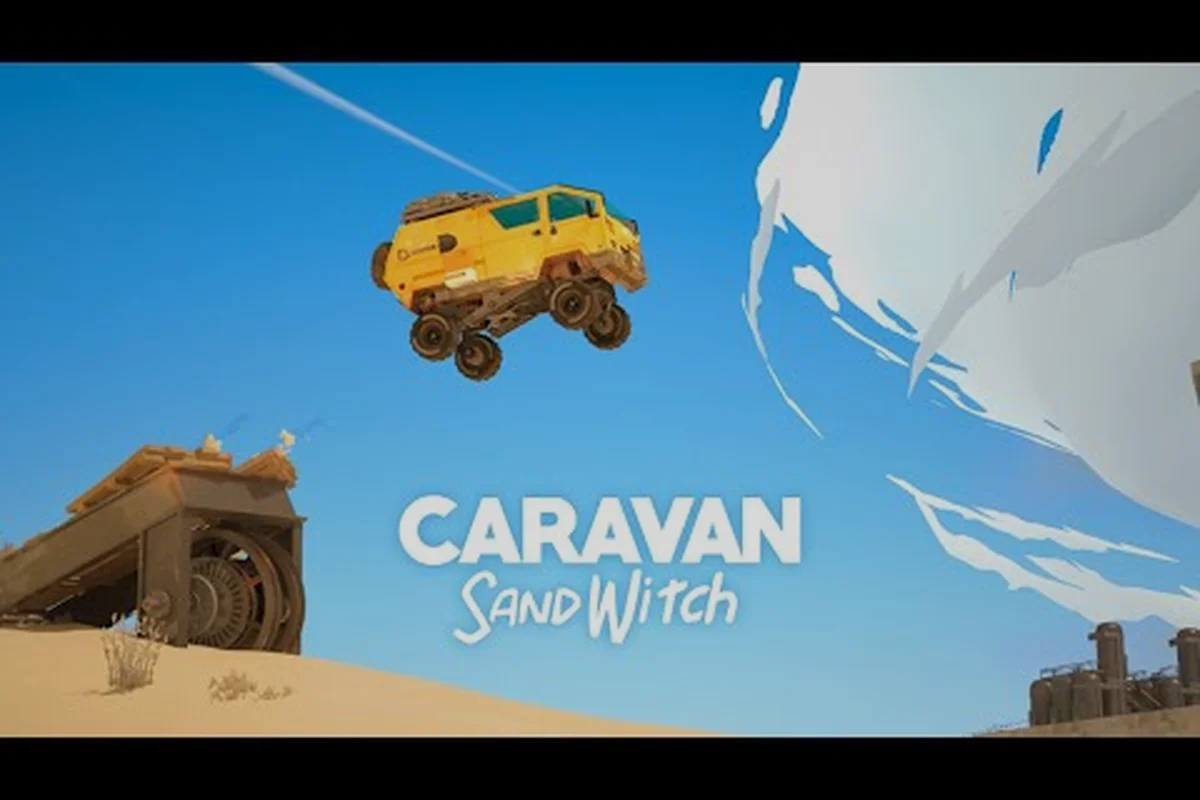
The mobile release of Caravan SandWitch brings Studio Plane Toast's cozy sci-fi exploration to phones and tablets, and the touch layout changes how you navigate Cigalo compared to PC or console. These Caravan SandWitch mobile tips focus on your first hour: getting comfortable with the controls, tuning the camera, and knowing exactly what to prioritize so you don't waste time wandering without purpose. The game is free to try with a one-time full-game unlock, so your early minutes should confirm whether the mobile port feels right before you commit. The camera, and knowing exactly what to prioritize so you don't waste time wandering without purpose. The game is free to try with a one-time full-game unlock, so your early minutes should confirm whether the mobile port feels right before you commit, and if it does, our beginner tips will help you turn that initial comfort into a solid foundation for the challenges ahead.
Why the First Hour on Mobile Feels Different
| Version | Release Date | Notable Changes |
|---|---|---|
| 1.0 | May 4 | Initial mobile release |
| 1.0.1 | May 13 | First patch |
| 1.0.2 | Jun 15 | Second update |
| 1.0.3 | Jul 1 | Third update |
| 1.0.6 | Current | Latest version, 883.9 MB, iOS 18.0+ required |
The mobile version of Caravan SandWitch launched in August 2026 on both Android and iOS, bringing the full exploration adventure to portable screens with a completely reworked touch interface. According to the official App Store listing, the game requires iOS 18.0 or later and takes up roughly 884 MB of storage, so make sure your device has enough free space before you start the download. The Android release follows the same free-to-try model, letting you sample the opening area before paying a one-time fee to unlock the entire game.
The core loop remains identical to the desktop version: you drive your van across a Provence-inspired sci-fi landscape, search for your missing sister, and help the four factions that call Cigalo home. However, the touch controls introduce a learning curve that doesn't exist on other platforms. The virtual joystick, camera swipes, and contextual action buttons all compete for thumb space, which is why a Caravan SandWitch mobile controls guide becomes essential reading before you set out.
What the Mobile Port Changes
The touch layout replaces the precise mouse-and-keyboard or controller input with a simplified scheme that prioritizes accessibility over precision—but it comes with trade-offs you must plan around. The on-screen joystick handles movement fluidly, yet the contextual action button (which merges interact, jump, and climb) can trigger unintended grabs when you're trying to sprint past a ledge, especially during the early-game scavenging runs around the Cigale settlement. Camera control via drag is serviceable but slower than a right stick, so expect to rely more on the auto-aim for your scanner pings when locating salvage caches. Here is what you need to know before your first session:
-
Virtual joystick on the left side handles movement, while the right side manages camera rotation and contextual actions
-
Context-sensitive prompts appear near your character when you approach interactable objects, reducing the need to memorize button mappings
-
Auto-targeting for dialogue and item pickups helps compensate for the lack of a mouse cursor
-
Controller support is available if you prefer a physical gamepad, which many players report feels closer to the console experience
The touch controls work well for the game's relaxed pacing, since Caravan SandWitch has no combat and rarely demands split-second reactions. That said, the camera can feel floaty during van driving sections, and you will want to adjust the sensitivity before tackling any of the more technical traversal puzzles.
Setting Up Your Device for Success
Before you even launch the game, a few device-level tweaks will improve your experience. Players on the r/AndroidGaming community thread report that disabling battery saver mode prevents unexpected frame drops, since the game streams in the open world as you drive. You should also consider these adjustments:
-
Increase screen brightness because Cigalo's warm, sunlit palette can look washed out on lower brightness settings
-
Close background apps to free up RAM, especially on older devices that meet the minimum requirements
-
Use headphones to catch audio cues for nearby collectibles and dialogue triggers
-
Test both landscape orientations to see which feels more comfortable for your grip
The game supports Game Center achievements and Family Sharing on iOS, so your progress syncs across devices if you play on both an iPhone and an iPad. The Android version offers similar cloud save functionality through Google Play Games, according to the Google Play listing.
Mastering the Touch Controls in the First 15 Minutes
The opening sequence of Caravan SandWitch eases you into the controls gradually, but you can accelerate that learning curve by understanding the layout before you start. This Caravan SandWitch controls guide breaks down each input method and how to use it effectively during exploration.
The left virtual joystick handles all character movement, including the ability to sprint by pushing the stick fully in one direction. The right side of the screen serves double duty: swiping rotates the camera, while tapping contextual buttons triggers interactions like talking to NPCs or entering your van. The game highlights interactable objects with a subtle glow, and a prompt appears when you are close enough to engage.
Adjusting Camera Sensitivity
Camera control is the most common frustration point for new mobile players, based on community feedback from the launch week. The default sensitivity feels sluggish to some and twitchy to others, so you should spend your first few minutes experimenting with the slider in the settings menu.
| Sensitivity Setting | Best For | Community Consensus |
|---|---|---|
| Low (0-30%) | Slow, deliberate exploration | Good for reading environmental details |
| Medium (30-60%) | Balanced driving and walking | Most players report this feels natural |
| High (60-100%) | Quick camera sweeps | Useful for scanning large areas but can cause motion sickness |
You can access the settings menu from the pause screen at any time, so do not feel pressured to settle on a value immediately. Try driving your van for a minute at each sensitivity level, since the camera behaves differently when you are moving fast versus walking on foot.
Using the Contextual Action System
The mobile version simplifies interactions through a contextual action button that changes based on what you are near. When you approach a ladder, the button shows a climbing icon; when you stand next to a villager, it switches to a speech bubble. This system removes the need to memorize which button performs which action, which is a significant quality-of-life improvement over traditional control schemes.
The action button also handles vehicle entry and exit, item pickups, and environmental interactions like flipping switches or opening doors. The game provides haptic feedback when the button becomes active, so you can feel when you are in range of an interactable object even without looking directly at it.
What to Prioritize in Your First Hour
Knowing what to do first in Caravan SandWitch on mobile saves you from aimless wandering and ensures you unlock the tools that make exploration smoother. The game does not hold your hand after the opening sequence, so having a clear plan for your first session will make the experience far more enjoyable.
Your immediate goal is to repair and upgrade your van, since the vehicle serves as both your fast-travel system and your key to reaching new areas. The van starts with limited fuel capacity and basic off-road capabilities, and upgrading it requires resources scattered across the starting region.
The First-Hour Checklist
Follow this sequence to make the most of your opening session: first, salvage the crashed Caravan near the starting Waypoint to unlock fast travel, then prioritize the Signal Tower repair questline—each tower you restore expands your map fog-reveal radius by roughly 15%, exposing more Cargo caches and Recycle nodes. Spend your first Credits on the Backpack Upgrade (costs 300) before any cosmetic part, since it adds two inventory slots that let you haul bulk scrap in a single trip, cutting early backtracking time by nearly half.
-
Complete the prologue until you gain control of the van, which takes roughly 10 minutes
-
Locate the first upgrade station marked on your map and inspect the required materials
-
Gather salvage materials from the immediate area around the station, focusing on the glowing containers and wreckage
-
Upgrade the fuel tank first, since running out of fuel mid-exploration forces a long walk back
-
Unlock the fast-travel points at each settlement you pass, as these become your respawn anchors
-
Talk to every named NPC in the starting village, because several offer side quests that reward upgrade parts
The game's map marks points of interest with icons, but it does not tell you which ones are essential. Prioritizing the main story marker ensures you always have a clear objective, while side quests fill in the gaps when you need additional resources.
Resource Management on Mobile
The touch interface makes resource gathering slightly slower than on PC, since you need to tap each collectible individually rather than sweeping a mouse across them. This makes efficient route planning more valuable on mobile, and you should grab resources whenever you pass them rather than making dedicated gathering trips.
| Resource Type | Primary Use | Where to Find It |
|---|---|---|
| Salvage Parts | Van upgrades | Wreckage sites, abandoned buildings |
| Fuel Cells | Van fuel | Settlement stores, hidden caches |
| Data Fragments | Lore and map reveals | Ancient terminals, Reinetos ruins |
| Food Items | Quest turn-ins | Farms, market stalls |
The Reinetos, the ancient native species of Cigalo, often trade unique items for specific resources, so maintaining a balanced inventory pays off when you encounter their settlements. The robots left behind after the planet's exploitation also hold valuable components, but some require puzzle-solving to access.
Driving Your Van Efficiently on a Touchscreen
The van driving sections present the biggest challenge for mobile players, since the touch controls lack the fine input precision of a physical controller. However, with a few adjustments to your technique, you can navigate Cigalo's terrain without frustration.
The van handles differently depending on the surface: paved roads allow high speeds with minimal steering correction, while rocky terrain requires slower, more deliberate input. The touch joystick does not provide the same feedback as a physical thumbstick, so you need to develop a lighter touch when driving over uneven ground.
Terrain Types and Driving Strategy
Cigalo’s terrain isn’t just scenery—it’s a driving puzzle that punishes a one-size-fits-all approach. On the sun-baked plateaus, the open ground lets you hold the throttle and chain boosts between salvage points, but the narrow canyon passes demand a complete shift: slow to a crawl, feather the brake, and use the handbrake to pivot around blind corners where a misjudged turn can send your rig tumbling into a ravine. The key is reading the surface before you commit—hard-packed dirt gives you grip for speed, while loose scree and sand will bog you down if you don’t ease off the accelerator. For a smoother first hour, map out your route on the plateau first to build momentum, then switch to precision steering the moment the canyon walls close in.
-
Paved roads allow full speed and minimal steering input, making them ideal for covering long distances
-
Dirt trails require moderate speed and frequent steering corrections to avoid obstacles
-
Rocky terrain demands slow, careful driving to prevent the van from getting stuck
-
Shallow water slows the van significantly but does not damage it, so crossing is safe but time-consuming
The van's upgrade path directly affects its off-road performance. The tire upgrade improves traction on rocky terrain, while the suspension upgrade reduces bounce on uneven surfaces. Both are worth prioritizing early if you plan to explore beyond the main roads.
Planning Routes with the Pause Map and Waypoints
The map screen pauses the game, giving you time to plan your route without pressure. You can place a waypoint on any discovered location, and a directional indicator appears at the top of the screen to guide you. The fast-travel system unlocks waypoints as you discover them, and traveling between them is instant.
A common mistake new players make is ignoring the fast-travel system and driving everywhere manually. While driving can reveal hidden resources, the time saved by fast-traveling between known locations is better spent on exploration and quest completion. Use fast travel for routine trips and save manual driving for areas you have not fully explored.
High-Impact Settings and Hidden Features on Mobile
Once you have the basics down, these advanced Caravan SandWitch mobile tips will help you explore more efficiently and avoid common pitfalls. The mobile port includes several quality-of-life features that PC players do not have, and knowing about them early gives you an advantage.
The game's performance on mobile depends heavily on your device's hardware, and the GamingOnPhone announcement notes that the port targets mid-range and flagship devices. If you experience frame drops, reducing the graphics quality in the settings menu often resolves the issue without significantly impacting visual clarity.
Managing Storage and Performance
The game requires roughly 884 MB of storage, but the total footprint grows as the game caches additional assets during play, so check your available storage before starting a long session. On a mid-range Android device, expect that footprint to climb past 1.5 GB after exploring the first two zones, as texture streaming and the open-world map data are held locally. To avoid mid-run stutter or forced saves failing, clear at least 2 GB of free space, and consider these performance tips: disable the in-game "High-Quality Shadows" toggle under Display Settings, cap the frame rate to 30 FPS for smoother thermal throttling control, and close background apps that compete for RAM.
-
Restart the game if you notice increasing load times, as memory leaks can accumulate during extended play
-
Lower the resolution on older devices to maintain a stable frame rate during driving sections
-
Disable notifications during play to prevent interruptions that pause the game unexpectedly
-
Use airplane mode if you are not playing online, since background network activity can cause micro-stutters
The game does not require an internet connection for single-player content, so offline play is fully supported. Cloud saves sync when you reconnect, which means you can switch between your phone and tablet seamlessly. This is especially useful during long expeditions in the Cigale sector, where signal drops are common; your progress toward unlocking the SandWitch's traversal upgrades won't be interrupted. To minimize load times and stutter when returning online, close background apps before syncing, as the save file can grow large after you've scanned multiple relics and mapped out the desert ruins.
Hidden Quality-of-Life Features
The mobile port includes several features that are easy to miss, and overlooking them can make your first hour in Caravan SandWitch noticeably slower. For instance, the dedicated "Interact" button on the touchscreen lets you skip the radial menu entirely when looting Crystals or opening chests—a small tap that saves roughly two seconds per pickup, which adds up across the dozens of resource nodes you'll hit in the starting zone. You should also enable the "Auto-Collect" toggle in the settings menu before your first expedition, as it automatically sweeps nearby Salvage into your inventory without breaking your movement stride. Finally, don't ignore the on-screen "Map Pin" shortcut; tapping it once drops a waypoint on your current heading, letting you navigate the desert's winding canyons without pausing to open the full map—a habit that keeps you moving toward the main quest markers and away from getting lost in the early game.
-
One-tap interaction lets you quickly pick up items without holding the button
-
Pinch-to-zoom on the map provides finer control over waypoint placement
-
Auto-drive on paved roads keeps the van moving straight, freeing your thumb for camera control
-
Quick-save is available from the pause menu, letting you save before risky exploration
These features are not documented in the game's tutorial, so many players discover them through experimentation. The auto-drive feature in particular transforms long road trips, since you can focus on the scenery or plan your next objective while the van handles the steering.
Frequently Asked Questions
Are the Caravan SandWitch mobile controls customizable?
Yes, the settings menu lets you adjust the virtual joystick position, button size, and camera sensitivity. You can also enable controller support if you prefer physical input, which the game supports on both Android and iOS. The customization options are limited compared to PC, but the essential adjustments are available.
Does the mobile version include all the content from the PC release?
The mobile port includes the full game with all main story content, side quests, and exploration areas. According to the official website, the mobile version is a complete port rather than a stripped-down adaptation. Performance varies by device, but the content is identical to the desktop release.
How long does the first hour of Caravan SandWitch take on mobile?
The first hour covers the prologue, your introduction to the van, and the opening exploration of the starting region. If you follow the checklist in this guide, you can complete the first van upgrade and unlock two fast-travel points within that timeframe. Players who explore thoroughly may take longer.
Is the free-to-try model worth testing before buying?
Yes, the free version lets you play through the opening sequence and explore the starting area without paying. This gives you a solid sense of the touch controls and performance on your device. The one-time unlock price is reasonable for the full adventure, and the App Store listing shows a 3.6/5 rating from over 100 reviews.
What should I do if the game crashes on my phone?
First, verify your device meets the minimum specs—iOS 18.0+ or the equivalent Android version, with roughly 884 MB free. If crashes persist, lower the graphics quality and close background apps. The current iOS build is 1.0.6, so ensure you've installed the latest patch before exploring Cigalo.